Your profile
Last updated:
Your profile is your page on Regenerative Link. It tells people who you are and what you're looking for. Open the profile menu at the top of the page or tap Me on your phone. Choose Edit profile to add or change your details.
Fill it in
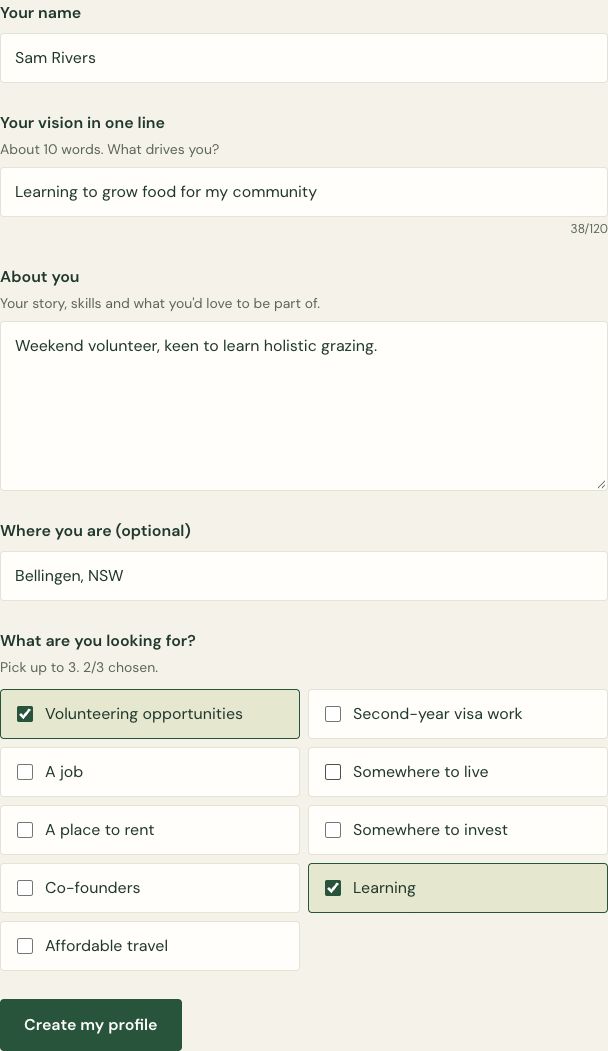
- Your name: how you'd like to be known.
- Your vision in one line: about 10 words on what drives you, for example "Helping new growers get their first harvest". Keep it under 120 characters.
- About you: a few lines on your story and skills, and what you'd love to be part of.
- Where you are (optional): a town, region or country. You don't have to give your address.
- What are you looking for? Pick up to 3: volunteering opportunities, second-year visa work, a job, somewhere to live, a place to rent, somewhere to invest, co-founders, learning or affordable travel.
- Add a photo (optional, but people notice pages with photos): choose Add a photo at the top of the form. It's saved with the rest.
- Choose Create my profile (or Save changes later on).
On the Profile page, choose View public profile to open the page that other people see. If your profile is members-only, the link reads View members-only profile.
Add or change your photo
You can add a photo while you make your profile, or later from the photo box on Edit profile. Your photo shows on your page and on your card in the People list.
- Choose Add a photo (or Change photo) and pick a JPEG, PNG or WebP picture, up to 5 MB.
- Choose Upload photo.
If the photo can't be saved, your other details are still there: choose the photo again, or leave it for now.
Every photo gets a quick automatic check first. Most go live straight away. If the check isn't sure, you'll see Waiting for a quick check under your photo. Only you (and our admins) can see it until one of our admins has a look, usually within a few days. If a photo is clearly not suitable, it's turned down and not saved, and you can choose a different one.
Only upload photos you're allowed to share, and ask people in them first. See photo consent.
Messages and connection requests
Choose Messages and requests in the header, or tap Me and then Inbox on your phone. The red badge counts unread messages and new connection requests. You can reply from the inbox or reply directly to the notification email.
Your places and projects
Further down your profile page you'll see the places and projects you help run, with an Edit link for each, and links to add new ones. See Add a place or project.
Changes to this page
· v1.2
Added the last updated date and change history
· v1.1
Updated the list of interests and explained when and how to add a profile photo
· v1.0
First version